Units License
When Rapidminer® AI Studio software is configured to use the Units License, it draws Units based on the Parallel execution value defined in Preferences.
The baseline for using Rapidminer AI Studio is 20 Units. If fewer than 20 units are available, Rapidminer AI Studio will provide an error message.
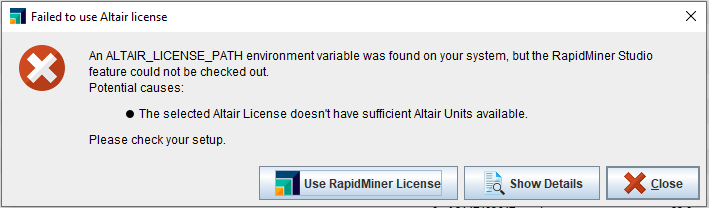
The baseline number of 20 Units allows Rapidminer AI Studio to use 8 threads. If the number of threads is increased, the number of Units also increases, at a rate of 5 Units per thread. For example, Rapidminer AI Studio configured with 12 threads draws 40 Units.
By default, Rapidminer AI Studio sets the number of threads to 8 for active processes and 0 for background processes: meaning all the 8 threads will be used for running the active / foreground processes and no threads will be available for background processes. You can change the default in the Settings.
From version 2024.1.0, Rapidminer AI Studio stacks units when used with other Altair products. Meanwhile, Rapidminer AI Studio levels the units with its instances.
Read more: Savings via Concurrency, or “Leveling”
Register your Units License
When Rapidminer AI Studio starts up for the first time, and you select Connect to an Altair License Management System, the following dialog appears.
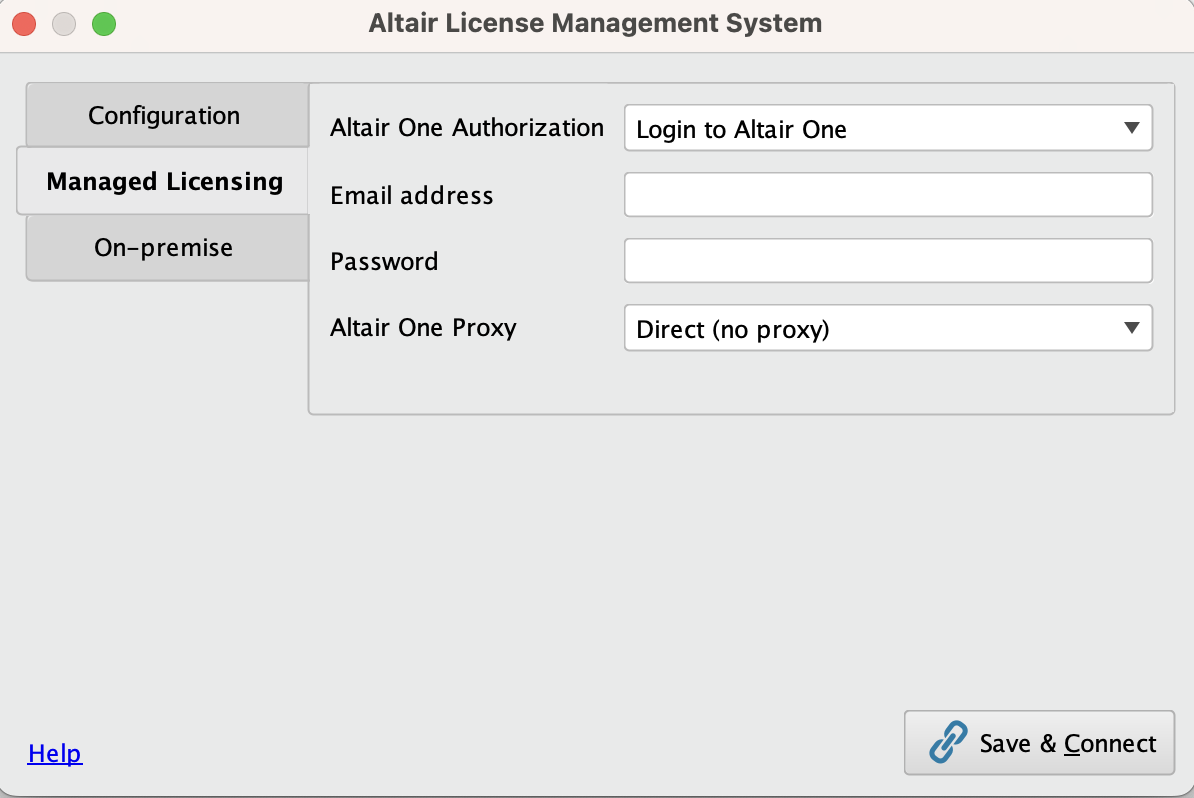
To use Rapidminer AI Studio, you must decide how you will connect to the Altair License Management System, whether it be an on-premise license or a managed license such as Altair One. The details of this dialog are discussed in more detail under Manage licenses.
Configure the Units License
To configure the Units License, you need to tell Rapidminer AI Studio how many logical cores / threads you want to use, and how to connect to the license server.
Settings
In Rapidminer AI Studio's Preferences dialog, the License tab includes the following elements:
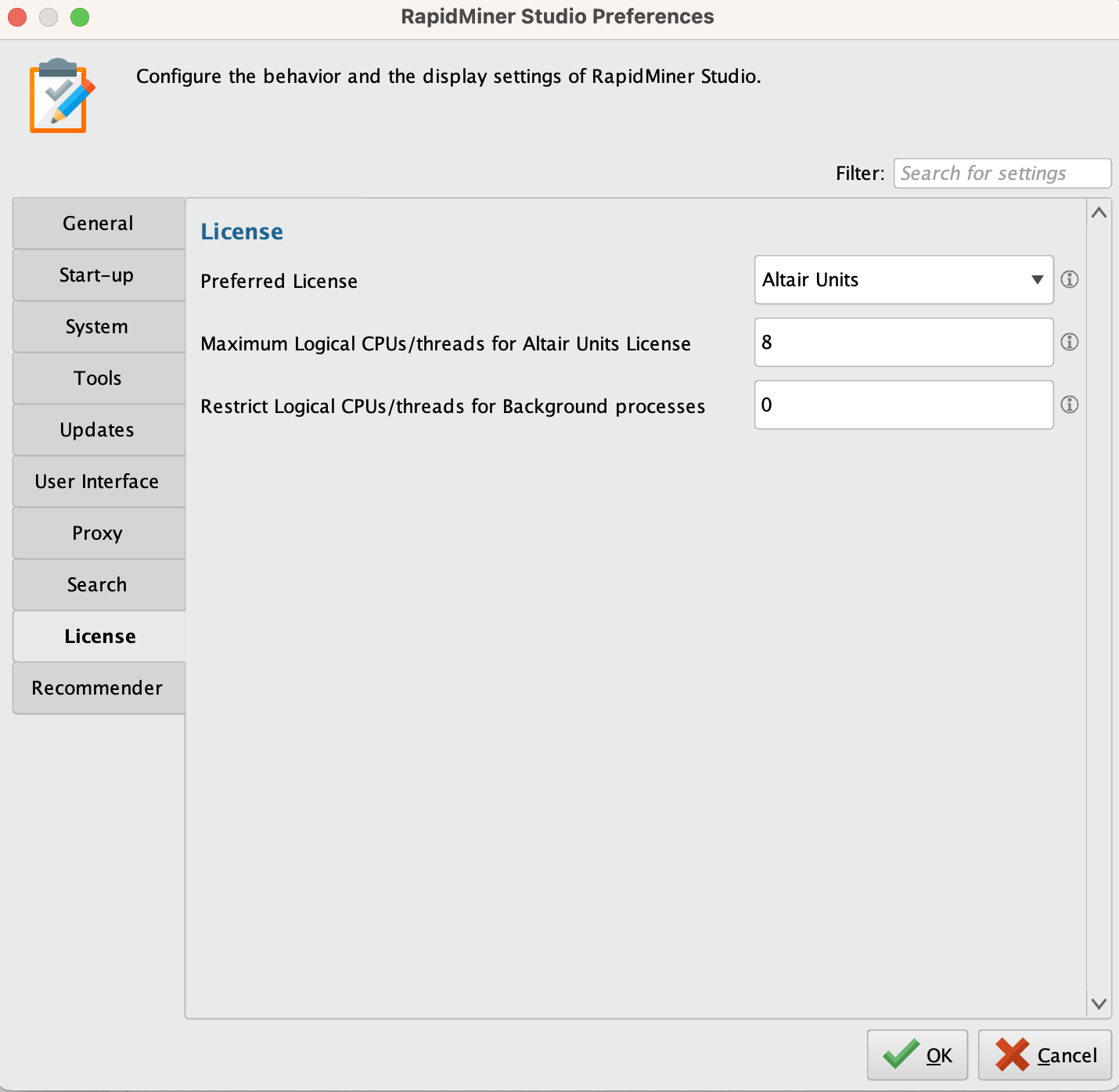
Preferred License - By default, Rapidminer AI Studio uses the Units License. When selected, Rapidminer AI Studio will use the RapidMiner License at startup.
Within the context of the Units License, the following settings apply:
Maximum logical CPUs/threads for Units License - Here you can set the maximum number of logical cores / threads for running processes. The default is 8.
Restrict logical CPUs/threads for Background processes - Here you can allocate logical cores / threads for processes running in the background. The default is 0.
To activate changes to these settings, you must restart Rapidminer AI Studio.
Manage licenses
From the menu, select Settings > Manage Licenses
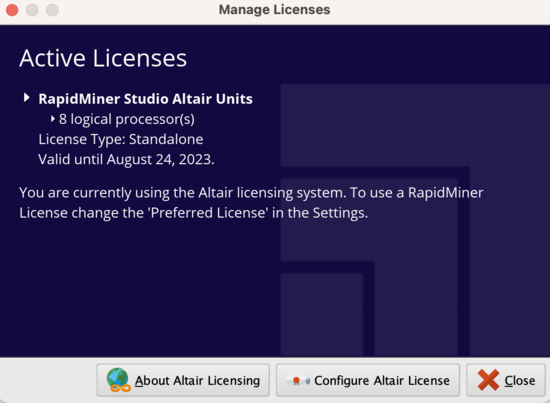
and in the resulting dialog, select Configure Altair License.
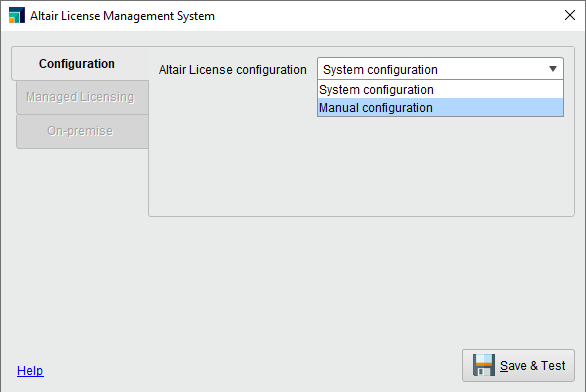
When configuring the Altair License, there are two configurations:
- System Configuration –
Uses the environment variables used in the system.
For example, if the environment variables
ALM_HHWUandALTAIR_LICENSE_PATHare set, Rapidminer AI Studio will use them to check the licenses. - Manual Configuration – Allows you to specify the license manually: either to use managed rights or an on-premise license.
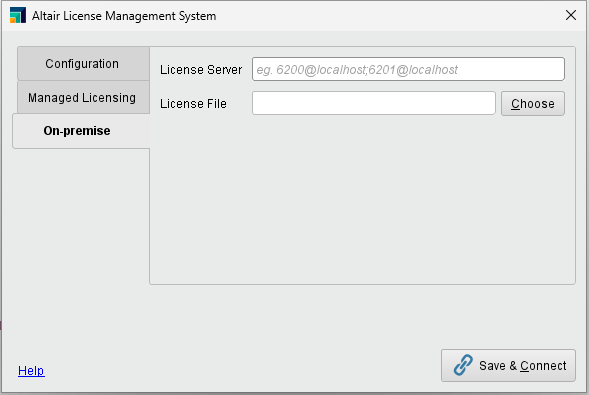
On-premise
To use local licenses, you can specify either the license server or the license file.
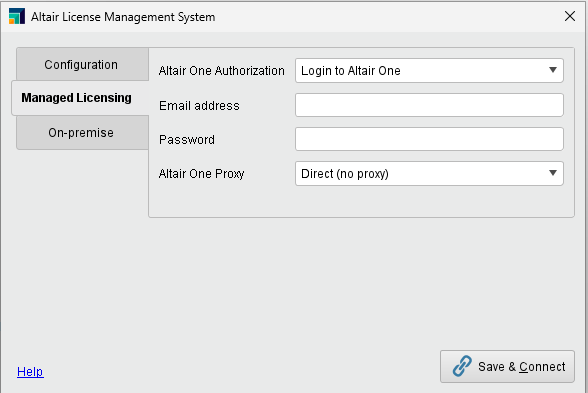
Managed Licensing
If using Altair One as your license server, you can select the authorization method to configure the license.
Log in to Altair One
Enter your email address and password for the Altair One account.
Use Auth code
Enter the Auth Code generated on the Altair One account.
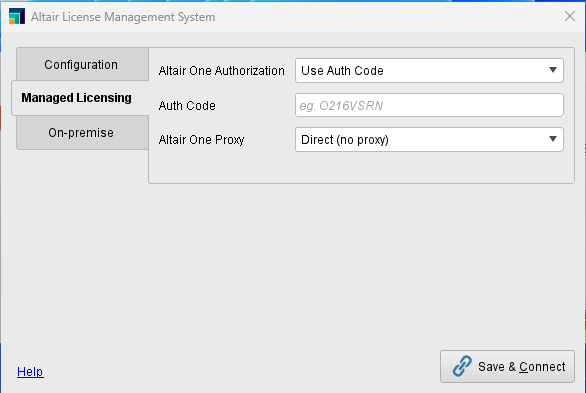
Proxy
You can specify the proxy method if you need a proxy to connect to the internet.