Installing Rapidminer AI Studio
Welcome to Rapidminer® AI Studio software, the easy-to-use visual environment for predictive analytics. With these simple instructions, in five minutes you will be building models and making predictions. No programming required.
You may want to verify that your system meets the system requirements before beginning the installation.
Table of contents
Download Rapidminer AI Studio
You can download Rapidminer AI Studio either:
From the Altair One Marketplace
To download Rapidminer AI Studio from the Altair One Marketplace:
Go to the Altair One Marketplace
Sign in if you haven’t already. Alternatively, Sign up to create an Altair One account.
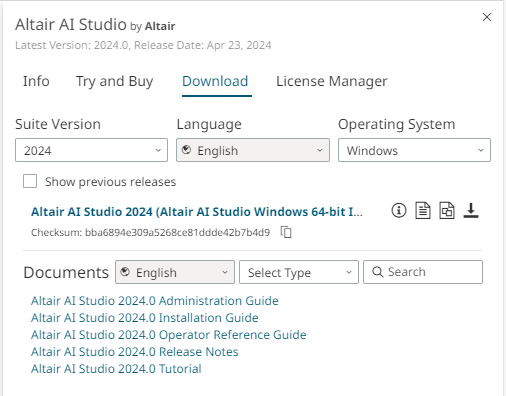
Find the Rapidminer AI Studio app in the Marketplace - e.g., under Data Analyst. Press the download icon.
From within the download tab, select the version and operating system, and then download Rapidminer AI Studio by pressing the download icon.
From the Rapidminer website
To download Rapidminer AI Studio from the Rapidminer website:
Go to the Rapidminer website.
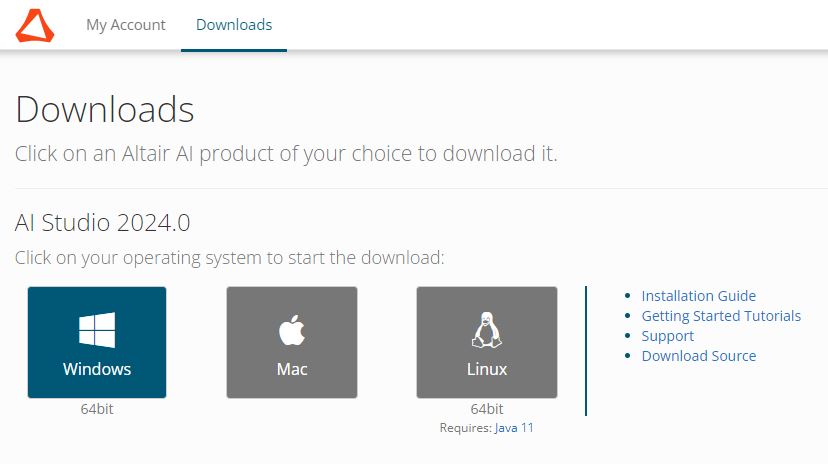
Sign in if you haven't already. See below if you need to create an account. If you just want to download Rapidminer AI Studio without logging in, click on Downloads.

Click on your preferred operating system to begin the download. Your current operating system will be highlighted.
Create an account
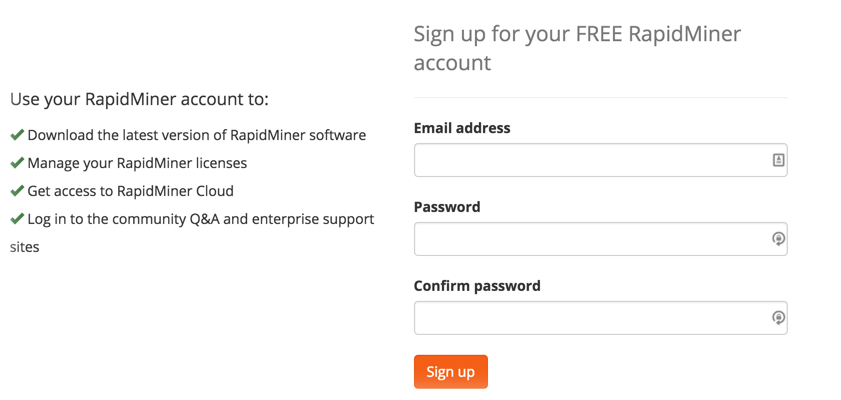
While you do not need to create an account to download software, complete the registration and click Sign up to experience the benefits of the Rapidminer® software community. Note that the password must be a minimum of six characters.
Immediately, the system sends an activation email to the address that you registered. (Allow email from Rapidminer if you do not see an email titled "Verify Your Email" in your inbox.)
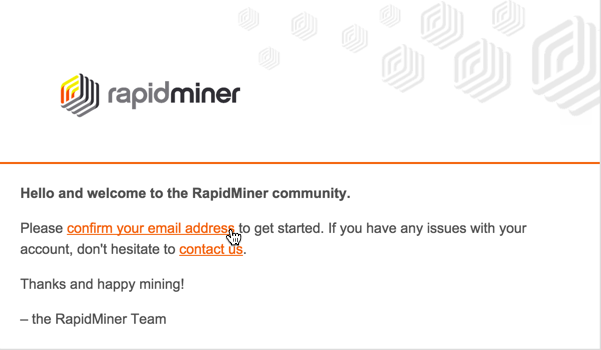
Click confirm your email address to activate your account. You receive a message that account creation was successful (and the system logs you in):
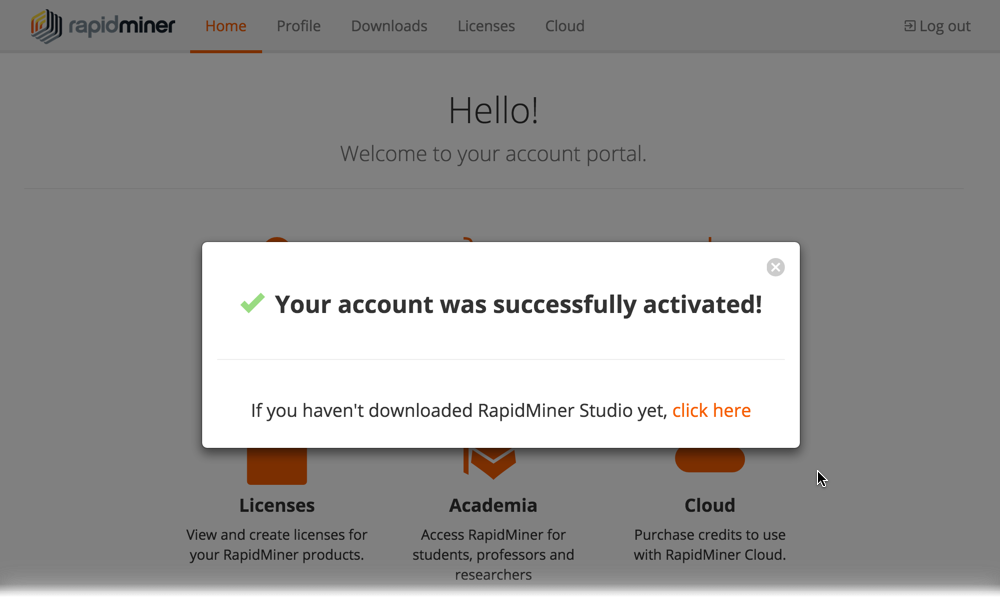
If you have already downloaded Rapidminer AI Studio, click the  . Otherwise, click the link to download.
Install Rapidminer AI Studio
When the download completes, install the software following the instructions appropriate to your platform. If you are upgrading Rapidminer AI Studio, make sure to quit the application before trying to install a new version.
Note that there is a versioned working directory structure for Rapidminer AI Studio versions 2024.0+, which may trigger a migration process during installation.
The benefit of the versioned working directory structure is that you can run different versions of Rapidminer AI Studio simultaneously, without breaking compatibility. For additional details, see the release notes.
Install on Windows
Follow these simple instructions to run the launcher that installs Rapidminer AI Studio on Windows.
Double-click the downloaded file (for example,
ai-studio-<version>-win64-install.exe).If prompted, allow the program to make changes to your computer. The Rapidminer AI Studio Setup Wizard appears. Click Next to continue.
Read the terms of the license agreement and click I Agree to continue.
Select a destination folder (or leave the default). Please ensure that the folder path does not contain
+or%characters. By clicking Install, the wizard extracts and installs Rapidminer AI Studio. When the installation completes, click Next and then Finish to close the wizard and start Rapidminer AI Studio.Read the terms of the license agreement and click I Accept to continue.
Install on Mac
To successfully install Rapidminer AI Studio on a Macintosh system, ensure that you are running Mac OS 10.10 or later. Then, follow these simple instructions:
Double-click the downloaded file (
ai-studio-osx-<version>.dmg).Drag Rapidminer AI Studio.app to your Applications folder. If prompted to replace an older edition, select Replace.
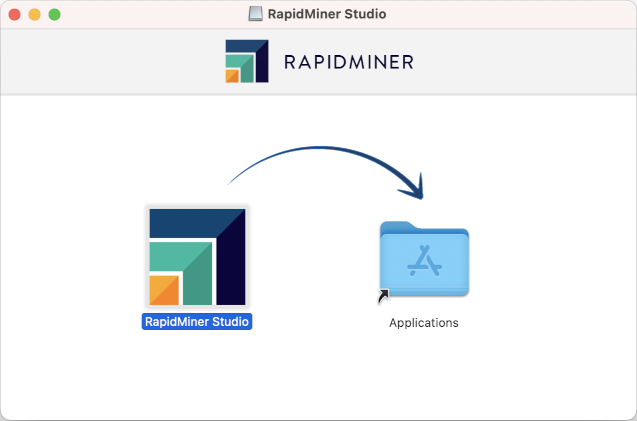
Double-click the App to start it.
Read the terms of the license agreement and click I Accept to continue. Rapidminer AI Studio opens.
Install on Linux
Linux prerequisites
The Rapidminer AI Studio installation package for Linux does not include a Java Runtime Environment. Before installing Rapidminer AI Studio, use the package manager of your distribution to install a version 11 JRE (unless it is already present with your operating system) and verify that the JAVA_HOME variable points to it or java (contained in the bin folder of your Java installation) is on the PATH.
Running the installation
Follow these simple instructions to install Rapidminer AI Studio on a Linux system:
Double-click the downloaded zip file (for example,
ai-studio-<version>.zip). The extracted folder contains script files for different operating systems. Please ensure that the folder path does not contain+or%characters.Open a terminal window and run
./AI-Studio.shfrom the directory containing the download.Read the terms of the license agreement and click I Accept to continue. Rapidminer AI Studio opens.
Configure the license
The first time you launch Rapidminer AI Studio a welcome screen appears, prompting you to configure the license using either the Units license or the Rapidminer License.
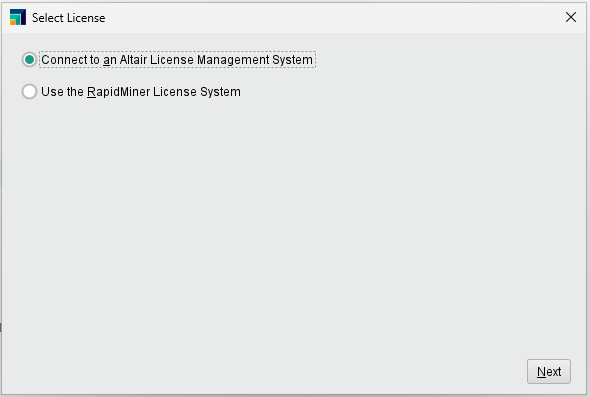
Choose one, accept the EULA, and then follow the instructions given below:
Then go be a hero! If this is your first time installing Rapidminer AI Studio, we recommend that you start with the Tutorials panel to learn just how easy code-free can be. Happy mining!
Configure the language
Set your preferred user-interface language.
- In Rapidminer AI Studio, open the Preferences dialog under Settings > Preferences.
- In the General tab, set the desired language.
- Restart Rapidminer AI Studio
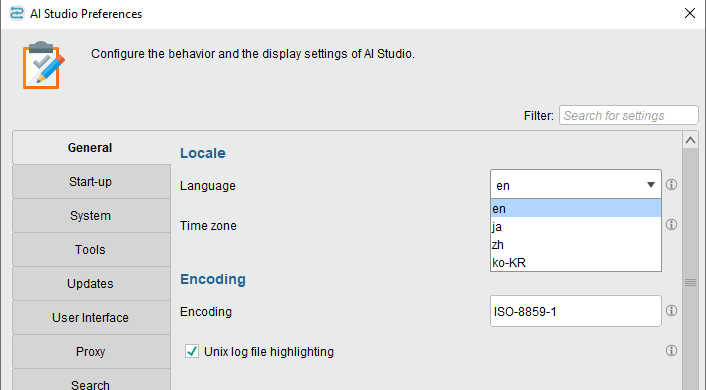
When using the Korean language, users may see issues with the font in Rapidminer AI Studio.
Change to the correct font under Preferences > User Interface > Font configuration.
More you should know
Just a few more tidbits relating to Rapidminer AI Studio...
Using the Marketplace
The Marketplace is your one-stop site to download and share extensions for Rapidminer AI Studio. Follow these steps for detailed instructions on accessing and using the Marketplace, or take a look at Marketplace here.
Moving the start script
By default, the RAPIDMINER_HOME variable is set to the folder location of the start script. If you leave the script within the installation folder (the most common method), the environment variable is set correctly. If you move the start script out of the installation folder, you must set the environment variable RAPIDMINER_HOME to the installation path of Rapidminer AI Studio. This allows Rapidminer AI Studio to find its resource files.
Uninstalling or re-installing Rapidminer AI Studio
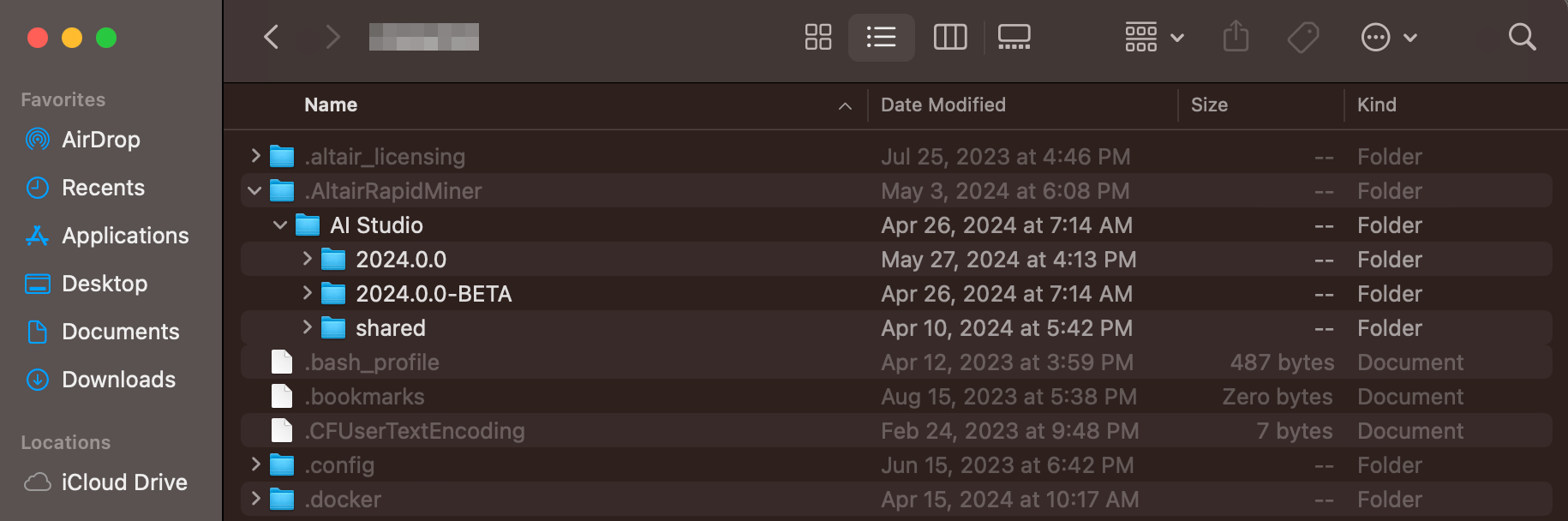
At the first run of Rapidminer AI Studio, the software creates a folder
.AltairRapidMiner/AI Studio/<ai_studio_version>
in your user home directory. Rapidminer AI Studio stores your personal settings and data (e.g., database connections) in this folder.
- If you need to remove Rapidminer AI Studio completely or discard all personal settings, delete this directory.
- Do not remove this directory if your Rapidminer AI Studio installation is damaged and you want to re-install it. Your personal data can be recovered by the new installation from within the directory
.AltairRapidMiner/AI Studio/<ai_studio_version>
To uninstall Rapidminer AI Studio, follow the steps specific to your operating system. These steps will guide you through the process and ensure the removal of Rapidminer AI Studio from your system.
Uninstall from Windows
To remove Rapidminer AI Studio:
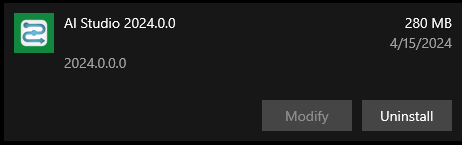
Go to Settings > Apps > Select Rapidminer AI Studio 2024.0, and click Uninstall.
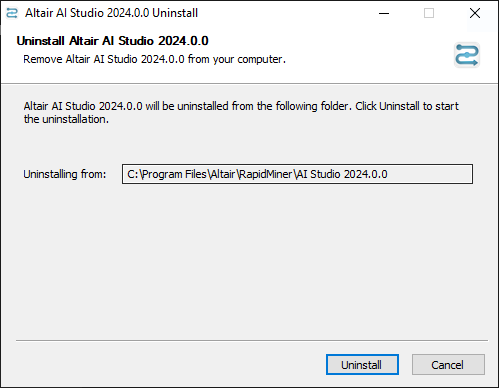
Click on the Uninstall button in the wizard.
Uninstall from Mac
To remove Rapidminer AI Studio:
In the Finder, select Go > Applications, and right-click (Control-click) on Rapidminer AI Studio
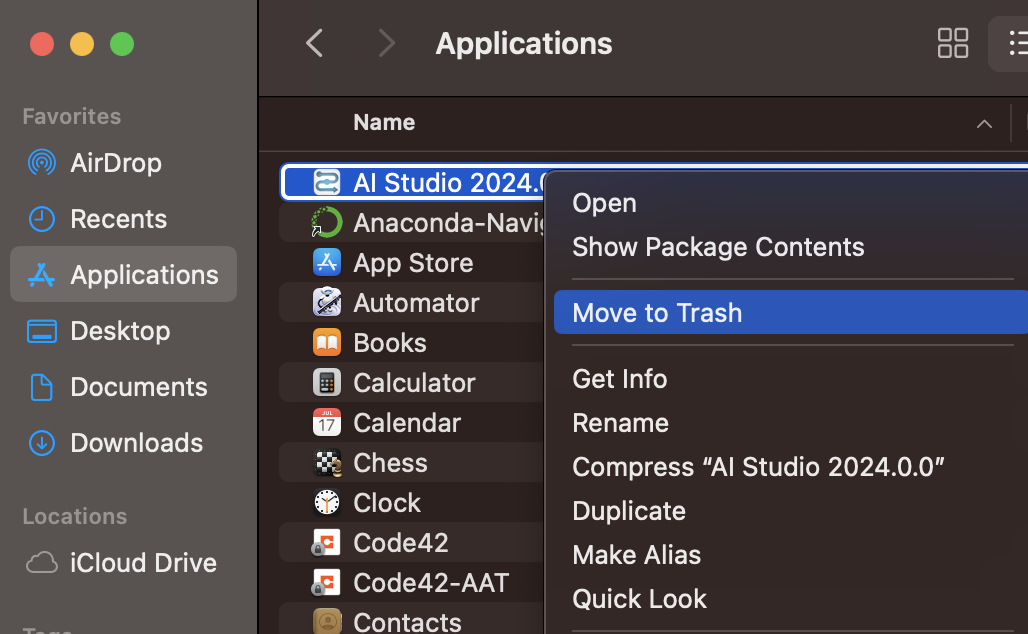
Select Move to Trash
(optional) If in addition, as described above, you wish to delete one or more of the version-specific folders containing personal settings and data, you can search for them in the Finder.
- Select Go > Home,
- Press Shift-Command-period (.) to make the hidden files visible, and
- Now you can navigate within the directory
.AltairRapidMiner, as with any other folder