Connect to Rapidminer Graph Studio
To configure a new connection and connect to your Rapidminer® Graph Studio™ software installation, you will need details such as the hostname, port, and some user credentials. Make sure you have them at hand before starting the process.
Take the following steps:
In Rapidminer® AI Studio software, right-click on the repository where you want to store your Rapidminer Graph Studio connection, and choose Create connection.
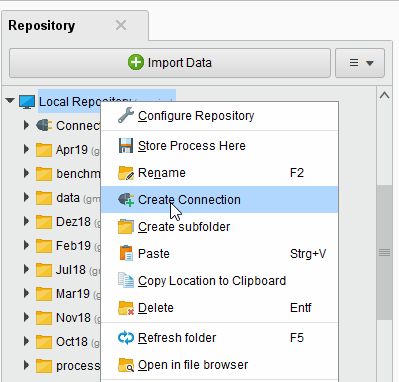
You can also click on Connections > Create Connection
 and select the Repository from the dropdown of the following dialog.
Give a name to the new connection, and set the Connection Type to Rapidminer Graph Studio:
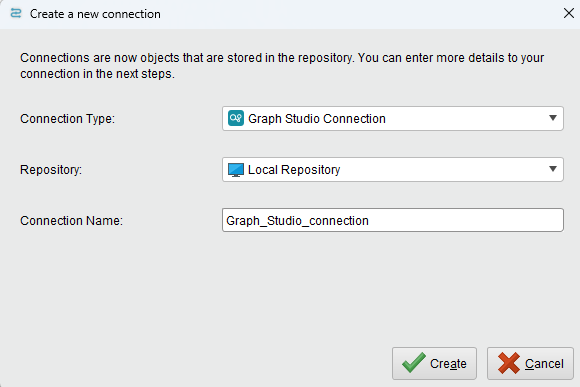
Click on
 Create and switch to the Setup tab in the Edit connection dialog.
Fill in the connection details, including hostname, port, credentials, and TLS configuration.
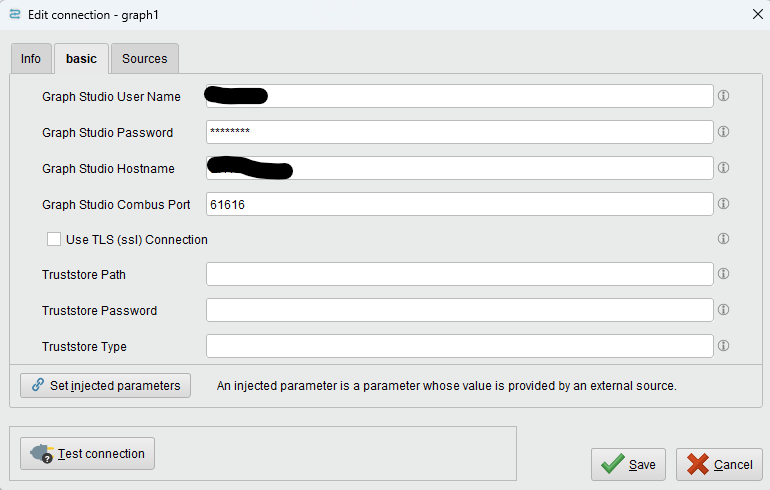
You can test your conection, then click
Save to save it and close the Edit connection dialog. You can now start using the Rapidminer Graph Studio operators.
Query your graph
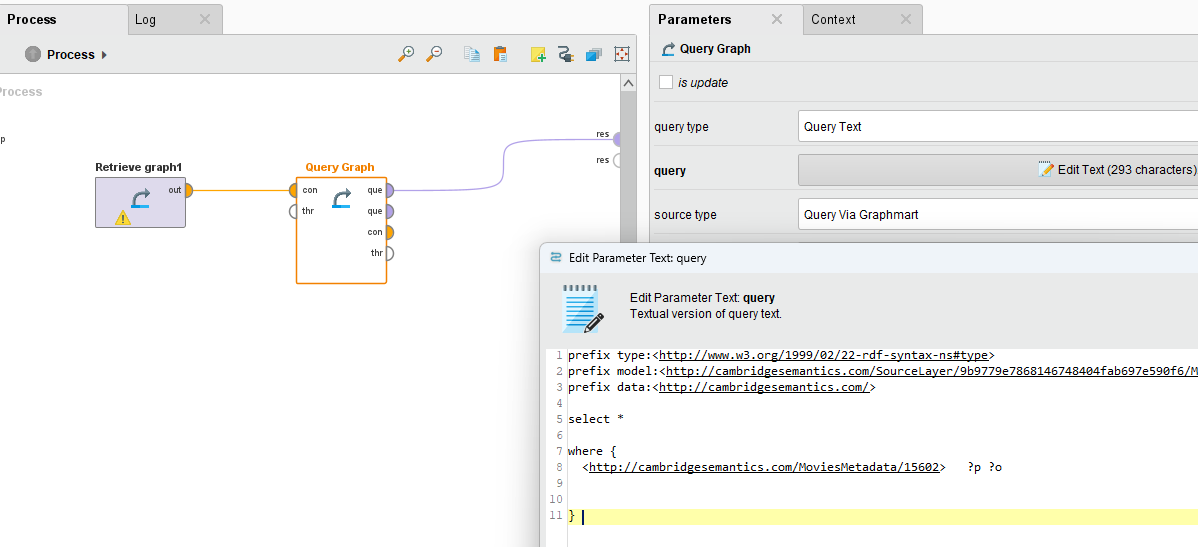
The Query Graph operator allows users to query the graphs in Rapidminer Graph Studio. It's possible to query a datasource, a data set or a graphmart defined in Rapidminer Graph Studio. The SPARQL query can be defined in a text box.
- If querying via datasource, the system journal is queried if none is provided.
- To query via graphmart, retrieve the graphmart URI via the Rapidminer Graph Studio UI. See: Graphmart FAQ
- To query via a dataset, retrieve the Linked Dataset Catalog Entry URI for the Dataset in question via the Rapidminer Graph Studio UI. See: Dataset FAQ
Other operators
The extension also includes other operators that give you different opportunities to interact with the graph. Please refer to the Rapidminer Graph Studio documentation for further information.
Call Semantic Service
This operator calls any of the Sematic services provided by Rapidminer Graph Studio to manage and configure the system.
Validate SPARQL Queries
This operator gets a query as an input, and checks where it's valid for Rapidminer Graph Studio. The output is a table with a "is_valid" column stating the validity and additional columns the the possible exception and other information.
Write Additions and Deletions to Graph
This operator allows users to add or delete statements to an existing datasource.
Insert/Update Statements Based on Statement Templates
This operator allows users to update or insert statements in a datasource based on a template that provides the subject-predicate-object structure.
Query Lakehouse
This operator allows users to directly query the Rapidminer® Graph Lakehouse™ software database.