Add license information
In this tutorial, you will add a license to your Python extension, as well as including 3rd-party licenses. Everything on this page is optional, so you can include only what you need.
Specify license in Python extension
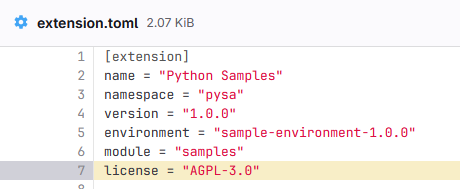
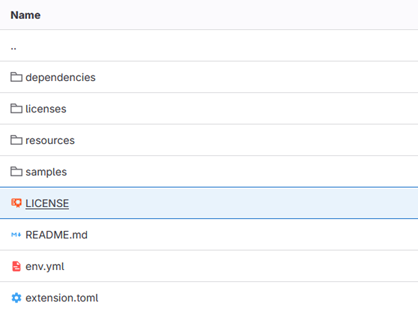
To specify the license for a Python Extension, include a LICENSE file in the root directory and define the license name in the configuration file under the extension.license scope.
Viewing the license in Rapidminer AI Studio
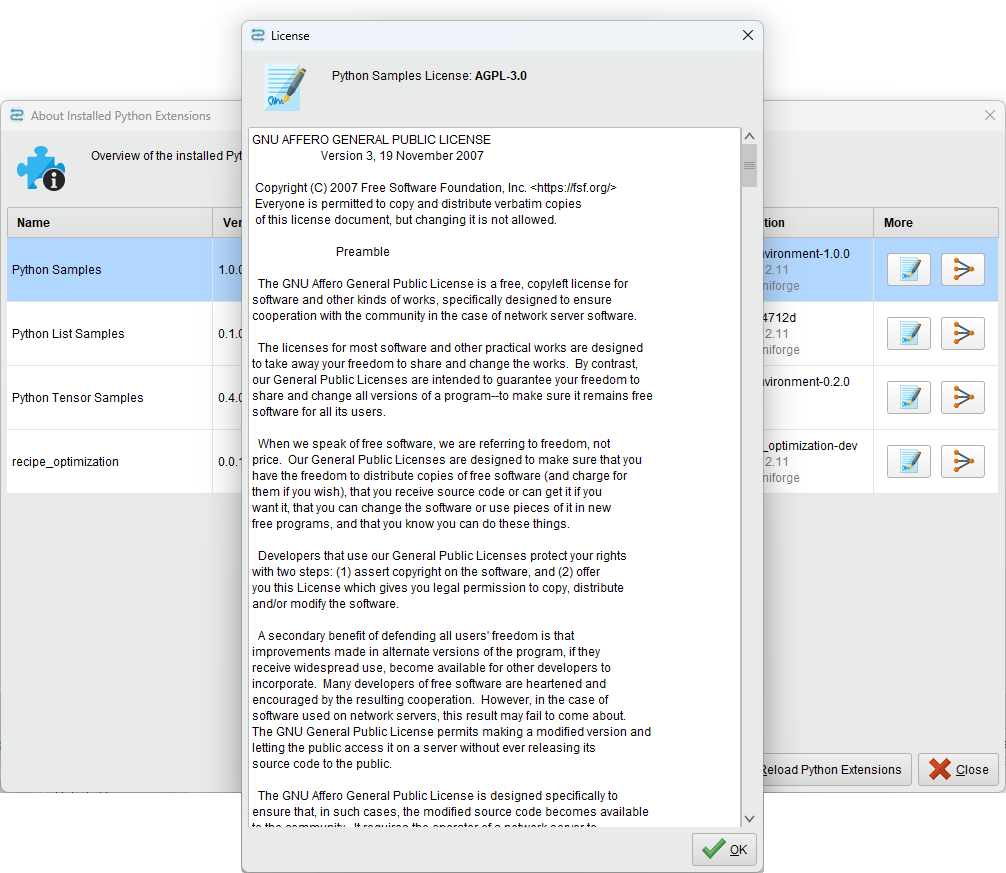
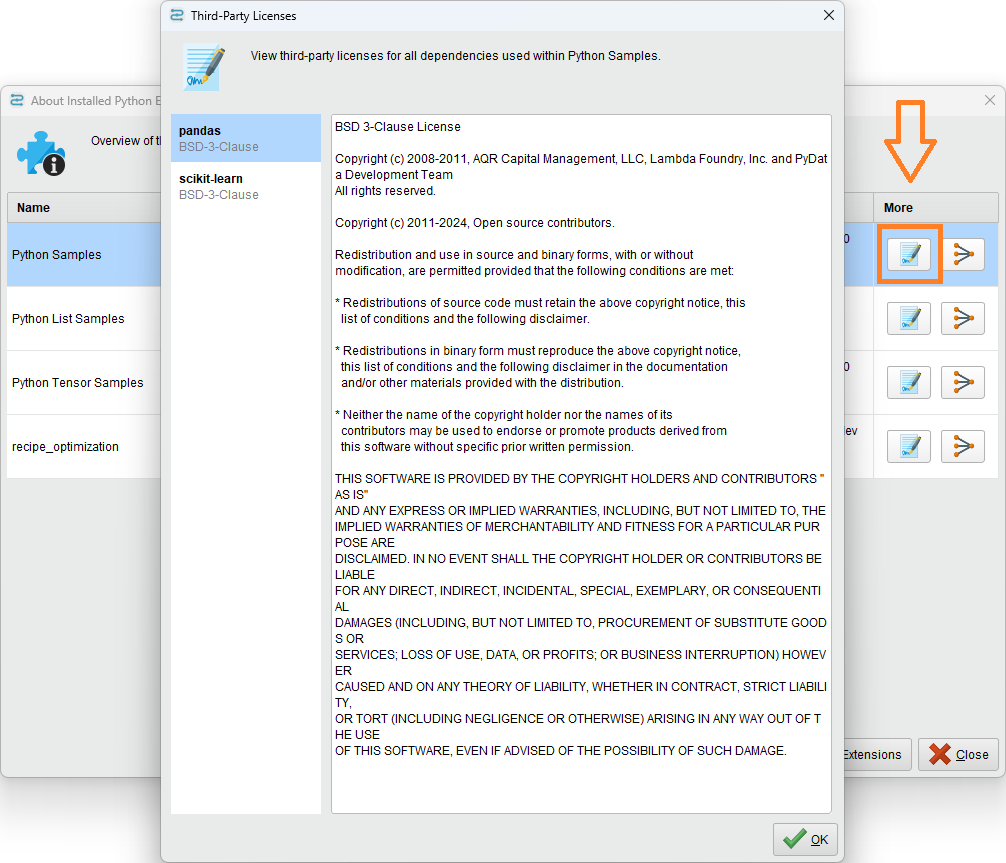
Once the license has been specified in a Python extension as outlined above, the license name will be displayed in Rapidminer® AI Studio software in the "About Installed Python Extensions" overview dialog. Furthermore, the content of the LICENSE file can be viewed by pressing the details button below the license name.

Third-party licenses
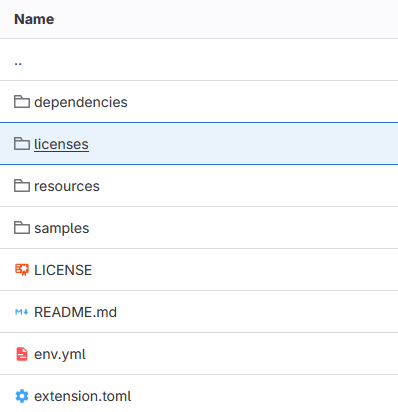
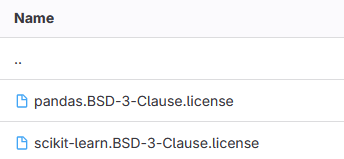
Third-party package licenses can also be defined by placing the respective license files in the licenses folder, using the format package_name.license_id.license (e.g., licenses/pandas.BSD-3-Clause.license). If 3rd-party licenses are present, Users will be able to view these licenses in Rapidminer AI Studio as well, by checking the 3rd-party licenses section in the overview table.
Conclusion
You now know how to both define a license for your Python extension itself, and how to satisfy license conditions of 3rd-party packages by including their licenses as well.
Want to learn about other specific topics you're interested in? Check out the other tutorials!